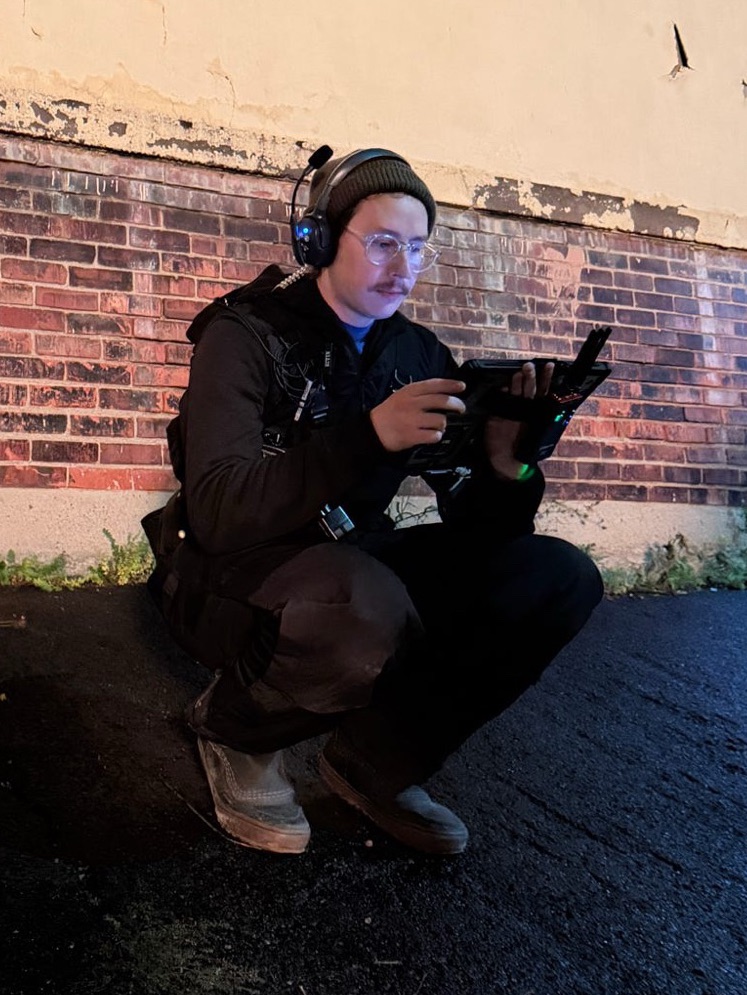
I recently jumped onto the Microsoft Surface Pro train. I have been aware of them for a long time, family members have used them for school/work, but I have never owned one. I have always loved the form factor of tablets and I’ve been an iPad user for over 10 years.
My first attempts at wireless DMX were with an iPad and the Luminair app. I gaffed a short film and many commercials using Luminair and I still think it’s a useful tool for the right user.
Like many others, I’ve been using my iPad mainly for Blackout these days, that or the Astera app. Blackout is great but I’m most comfortable on EOS, and having my EOS showfile full of effects and Color Palettes in a mobile version is very appealing. This is where the surface comes in:
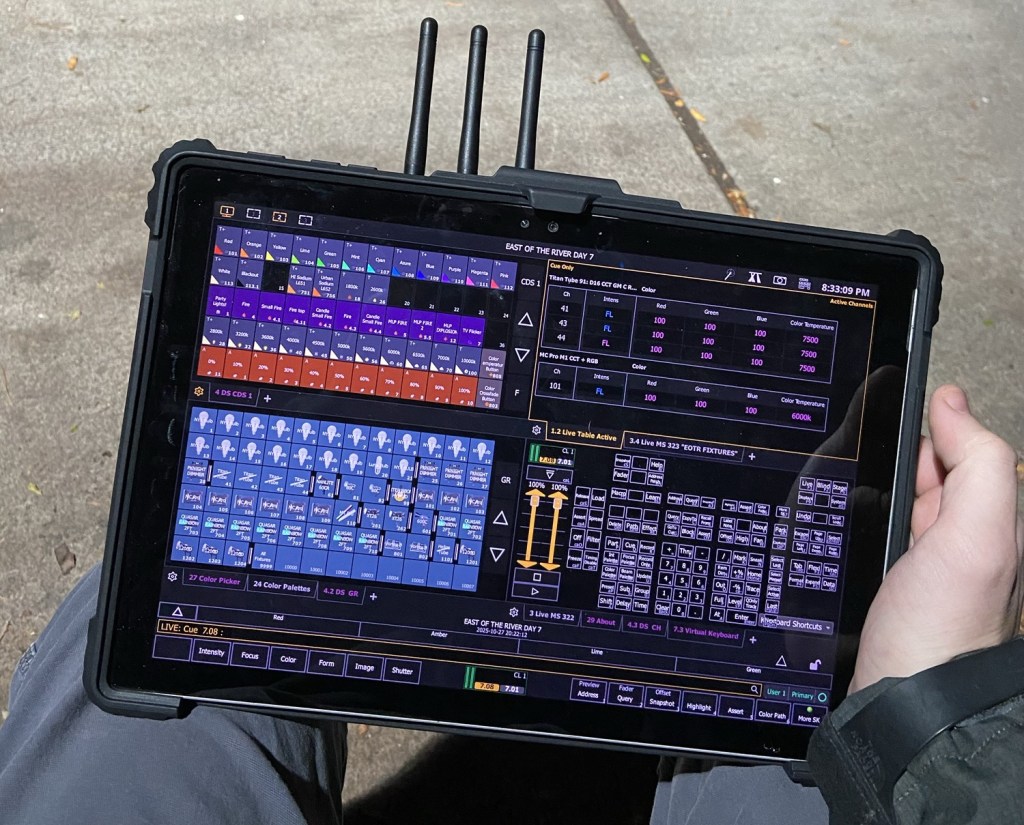
I found a used Surface Pro 3 for $50 online. At this price it was no brainer and worth it for the experiment, well worth it.
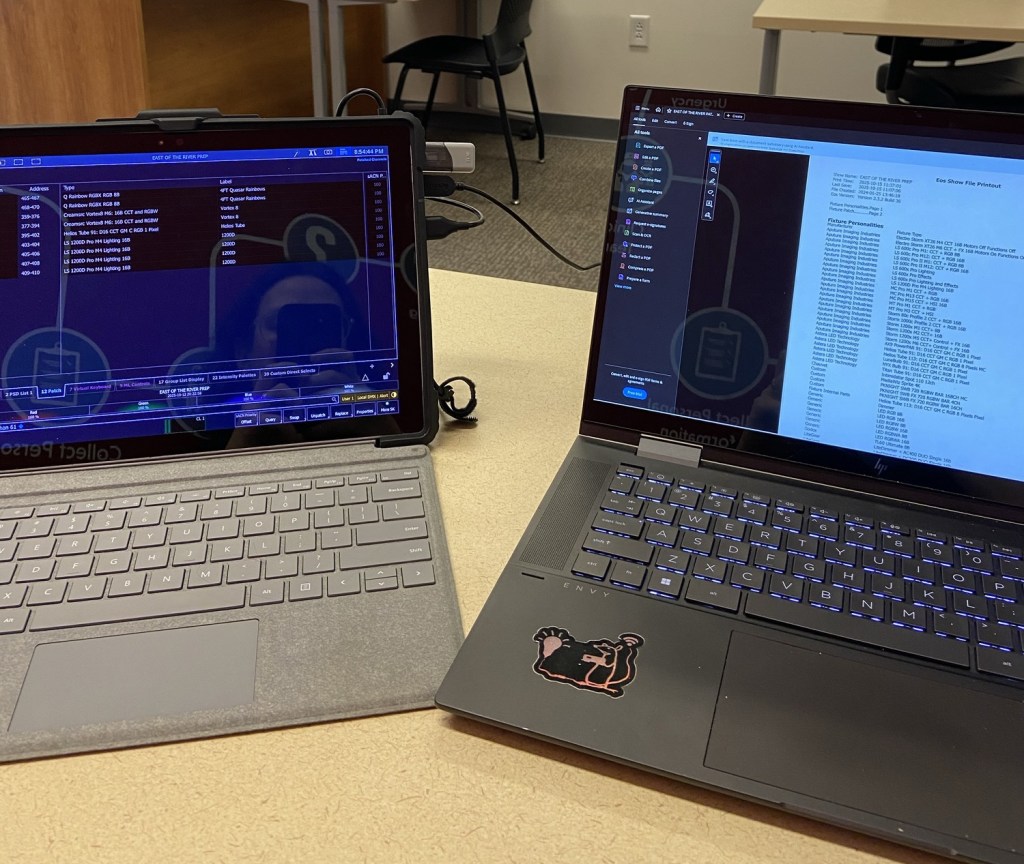
When it arrived I installed EOS and loaded up my showfile. After a bit of configuration, making a custom direct select and pulling up the virtual keyboard in a tab, it works like a dream. EOS is already touch screen friendly, and the Surface’s screen is super responsive. In my workflow I use direct selects a lot. This translates over perfectly to the tablet workflow. Magic sheets also feel right at home on a tablet.
The Nomad dongle fits nicely into the USB port and unlocks the full EOS experience on the go.
Working on film sets, especially when I’m gaffing and without a dedicated programmer, speed is everything. Having the ability to control lights while standing at the monitor is huge. I’ve previously done projects where I bring my mini EOS Nomad console, and while small, it still requires power and doesn’t allow the flexibility of walking around set while making adjustments. Saving myself the steps running back and forth from the console is worth it alone.

The Surface + Sidus One Power Combo
Where the Surface shines is when paired with the Aputure Sidus One. The Sidus connects to the Surface via WiFi and then outputs one universe of CRMX. This is enough for small Features and commercials and is now my go to for any job I can fit into a single universe. I’ve done a Feature and a handful of commercials with this setup, and have only had minor hiccups, mostly related to the Surface itself.
You can mount the Sidus on a stand, but I prefer to keep mine strapped to the back of the Surface. If you choose to keep it strapped, be aware of your antennas, I’ve broken a few moving around set.

I recently purchased a second Surface Pro, this one being a Surface Pro 7. The upgrade to Windows 11 is nice and this one being newer puts my mind at ease.
During the Feature I was recently on, all things were going well for 2 weeks, then suddenly the screen started to freak out. The whole screen would glitch and while it still worked, it made it a lot harder to select things on the screen, and it was not a good look on set. Luckily I turned it off for the night and things were back to normal in the morning. It survived the rest of filming, but I knew a new tablet would have to be had if I wanted to keep the same workflow.
I went to Best Buy ready to buy the newest Surface, I figured spending the money would be worth the peace of mind. Luckily I checked before buying, the new Surfaces run on Snapdragon processors, which EOS does not support. Back online I went, and I found one for $100. I’ve transferred everything over and so far so good. I’ll have to report back if any issues arise.
Wrapping it up, I really like the way the Surface Pro allows me to work. It’s not a replacement for a full console but it is incredibly useful on smaller jobs or when you don’t have a dedicated programmer. I miss my buttons but I’ll take the ability to adjust levels from crafty. The tools are what you make them and this one I’ll be using a lot.
 Rat Castle Films